¶ 1. Overview
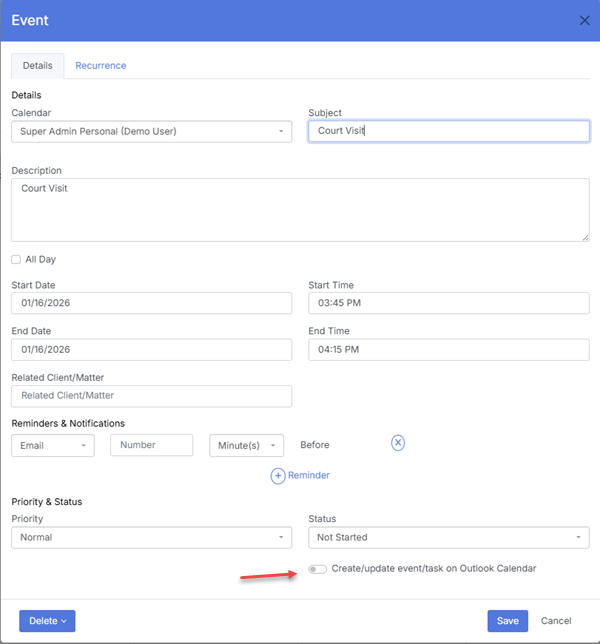
The Event module provides a structured interface for creating and managing scheduled activities across the firm. Events can be linked to matters, assigned to lawyers, and categorized through sub‑calendars to ensure clarity, consistency, and proper access control. All events appear instantly on the Calendar and follow the color‑coding and permissions of the selected calendar.
¶ 2. Creating an Event
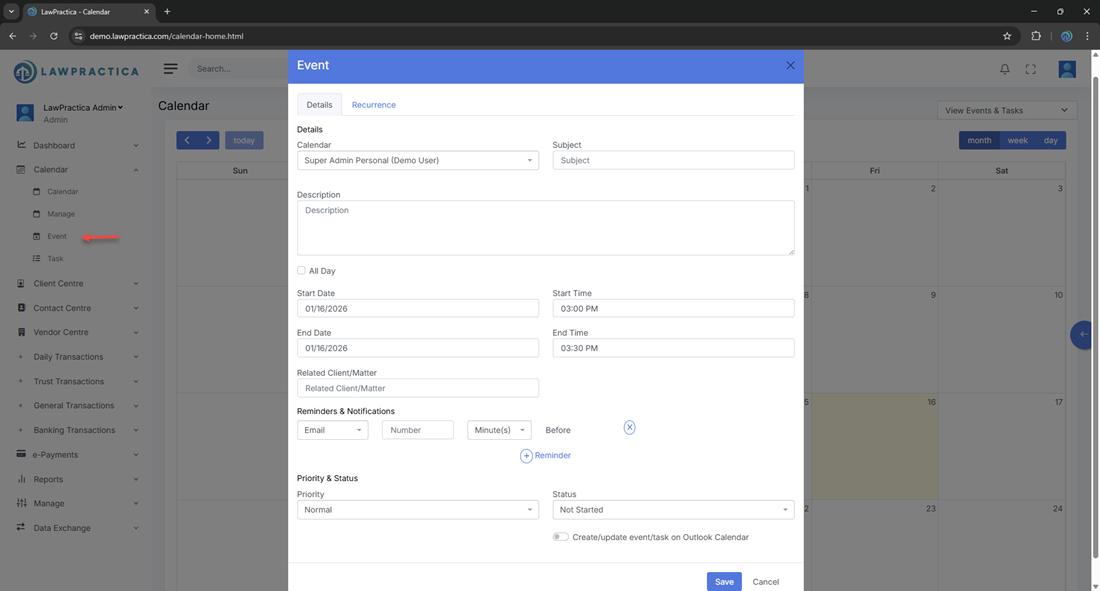
Events can be created from the Calendar interface or directly within the Event module.
¶ Steps
- Open the Event module or select a date on the Calendar.
- Choose the appropriate sub‑calendar.
- Enter event details, including title, date, time, and duration.
- Assign a lawyer or team member.
- Link the event to a matter (optional).
- Add notes or reminders if required.
- Configure recurrence (if applicable).
Save the event.
¶ 3. Event Details
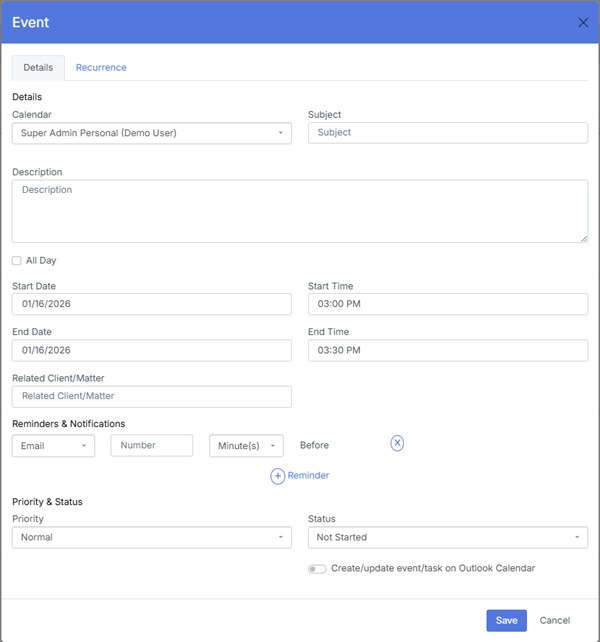
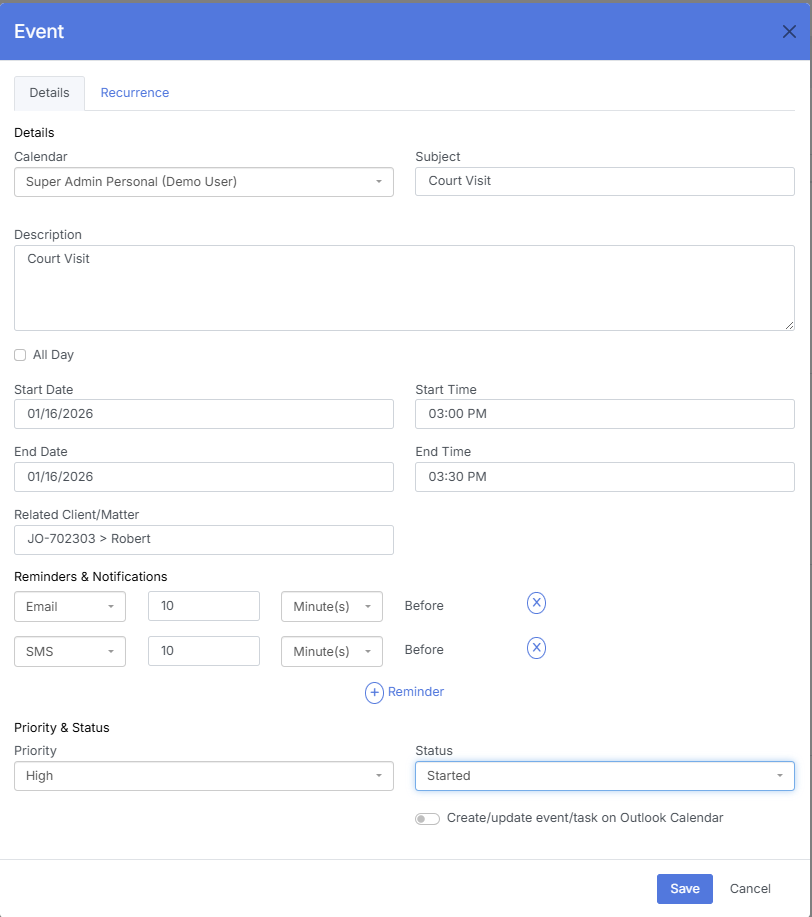
Each event supports the following fields:
- Title – Description of the appointment or activity
- Date & Time – Start and end times
- Assigned Lawyer – Responsible individual
- Matter Link – Optional connection to a specific matter
- Calendar Selection – Determines color and permissions
- Notes & Reminders – Additional context or alerts
- Recurrence – Optional repeating schedule
These fields ensure events are informative, traceable, and aligned with firm workflows.
¶ 4. Recurrence
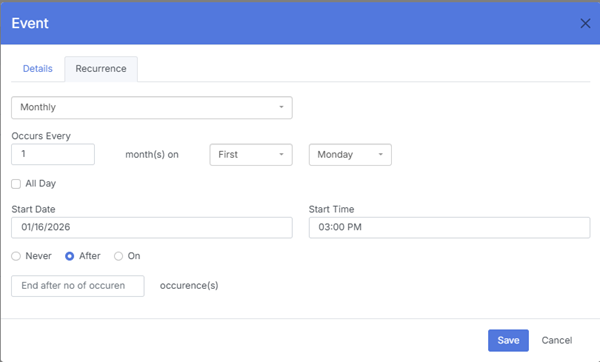
The Recurrence feature allows users to create repeating events without manually recreating them.
¶ Available Recurrence Options
- Daily – Repeats every day or every X days
- Weekly – Repeats on selected weekdays
- Monthly – Repeats on a specific date or weekday pattern
- Yearly – Repeats annually on a specific date
- Custom Intervals – Flexible repeat patterns based on user needs
- End Conditions
Users can specify how long the recurrence should continue:
- No end date
- End after a set number of occurrences
- End on a specific date
¶ Behavior
- All recurring instances inherit the same calendar, color, and permissions
- Editing a recurring event allows users to update:
- A single occurrence
- All future occurrences
- The entire series
- Deleting follows the same options (single, future, or entire series)
This ensures recurring schedules remain accurate and easy to maintain.
¶ 5. Calendar Assignment & Color‑Coding
When an event is created:
- The selected calendar determines the color
- Permissions are inherited automatically
- Visibility is restricted to authorized users
- The event appears consistently across all scheduling views
This ensures clarity and prevents misclassification.
¶ 6. Editing an Event
Users can update event details at any time.
¶ Editable Elements
- Title
- Date and time
- Assigned lawyer
- Matter link
- Calendar selection
- Notes and reminders
- Recurrence settings
Changes apply instantly across the Calendar and related modules.
¶ 7. Deleting an Event
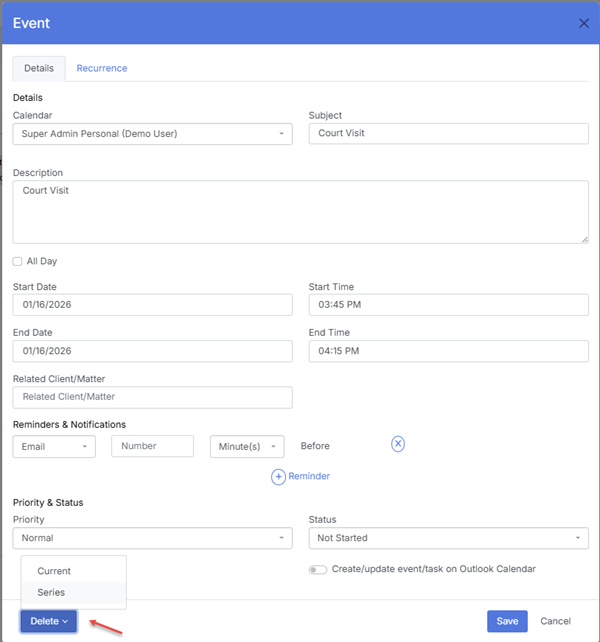
Events can be removed when no longer required.
¶ Options for Recurring Events
- Delete this occurrence only
- Delete this and all future occurrences
- Delete the entire series
¶ General Considerations
- Only authorized users can delete events
- Removal updates all Calendar views immediately
- Historical reporting remains unaffected
¶ 8. Integration with the Calendar
All events created in the Event module:
- Display on the Calendar immediately
- Follow the selected calendar’s color and permissions
- Appear in daily, weekly, and monthly views
- Sync with task and matter workflows where applicable
This ensures a unified scheduling experience across the platform.