¶ Overview
Legal AI allows you to:
- Perform legal research
- Find case law and precedents
- Generate legal documents and questions
- Summarize client/matter data for billing
- Assist with case preparation
The assistant supports multiple AI providers, giving flexibility based on your preference and API access.
¶ Accessing Legal AI
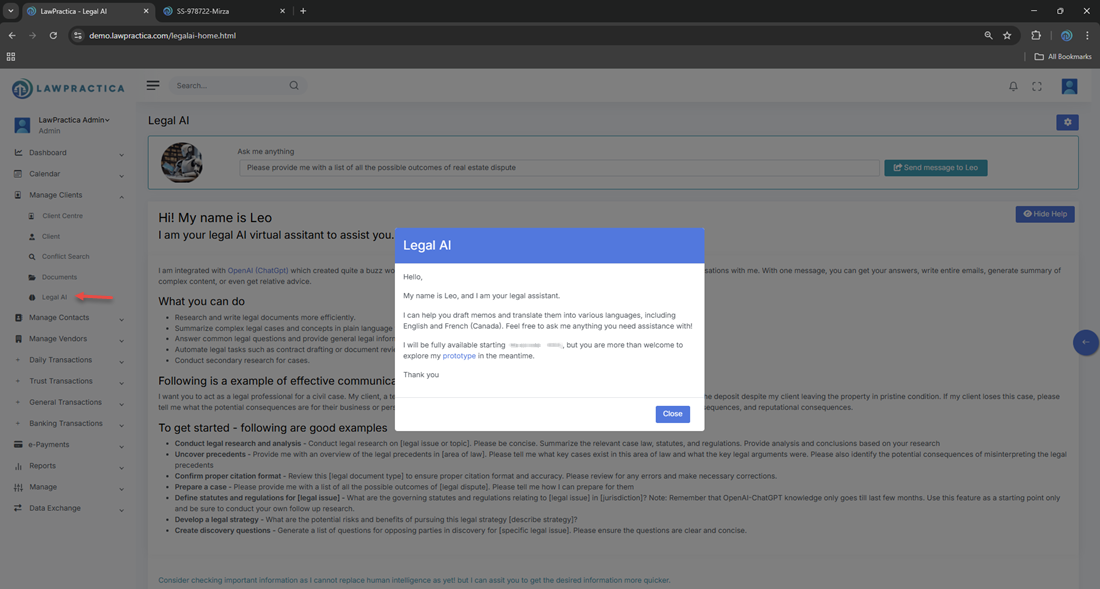
- Navigate to Legal AI from the main menu.
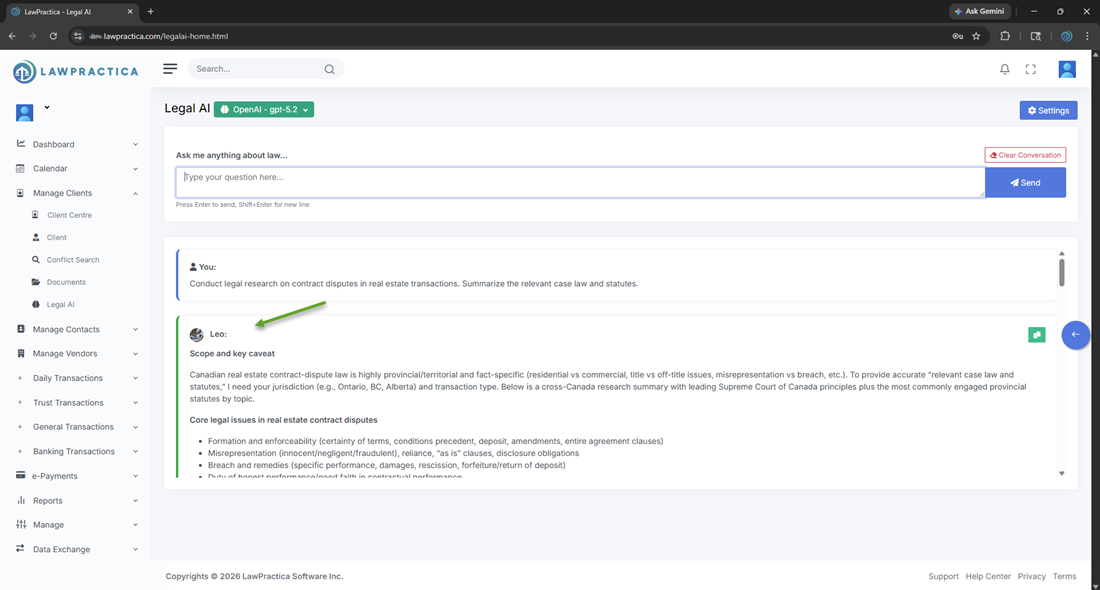
- The Legal AI home screen will load with:
- Welcome message from Leo (AI Assistant)
- Suggested prompts
- Analysis & Suggestion area
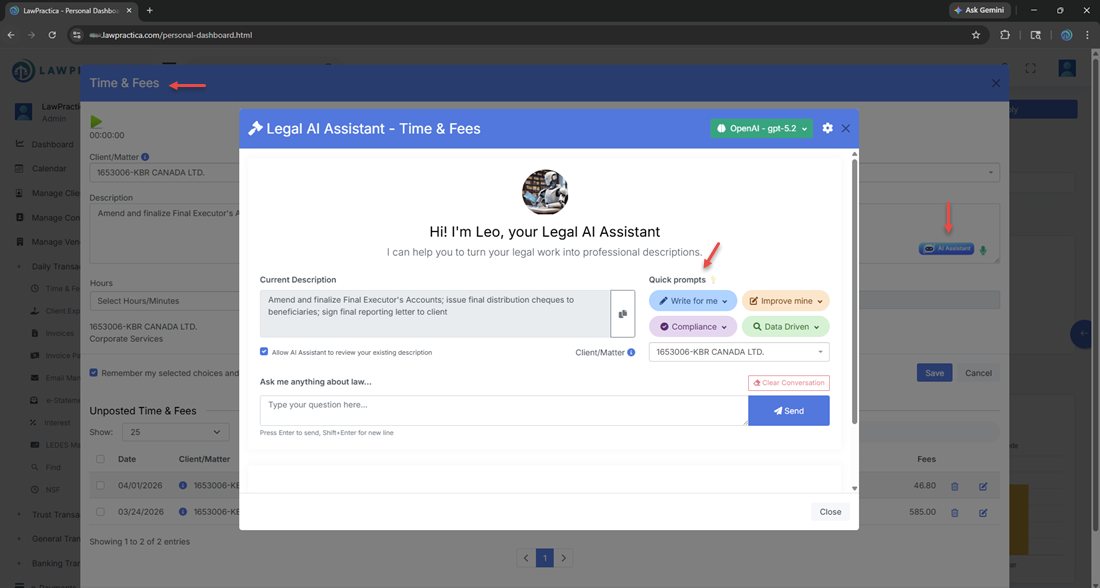
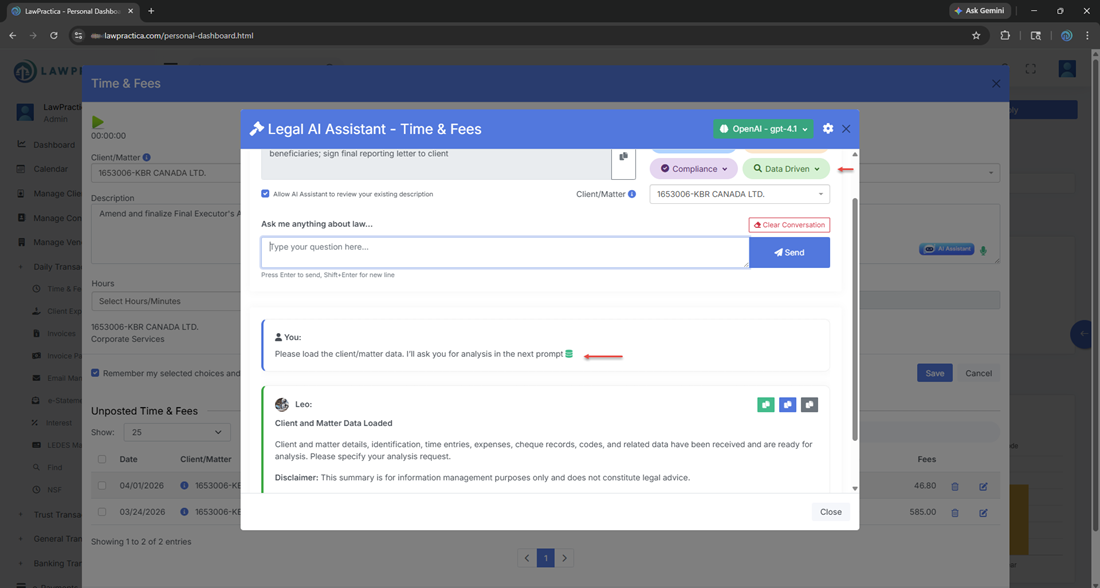
¶ Accessing - AI Assistant on Time & Fees
- Navigate to Time & Fees from the main menu.
- Click on AI Assistant
- Welcome message from Leo (AI Assistant)
- Quick prompts
- Analysis & Suggestion area
¶ Initial Setup (All Done)
We are offering pre-configured trained AI assistant of all 4 AI Providers so that you can experience integrated AI without any extra step. You can also use your own AI providers API Key.
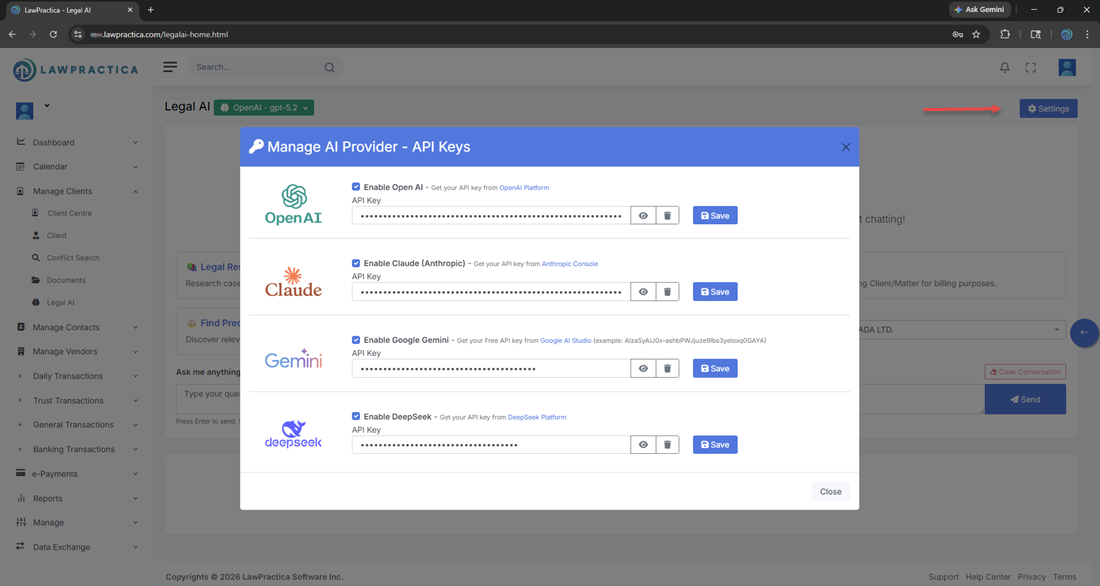
¶ Steps to Configure API Keys
- Click Settings (top-right corner)
- The Manage AI Provider – API Keys modal will open
- Enable your preferred provider
- Enter your API key
- Click Save
¶ Supported AI Providers

OpenAI - https://platform.openai.com/api-keys
Recommended for general-purpose legal AI tasks

Claude (Anthropic) - https://console.anthropic.com/settings/keys
Strong for long-form analysis and reasoning

Google Gemini - https://aistudio.google.com/app/apikey
Strong in content base analysis and offers free-tier access (subject to limits)

Deepseek - https://platform.deepseek.com/api_keys
Useful for cost-effective AI processing and Asian Clients
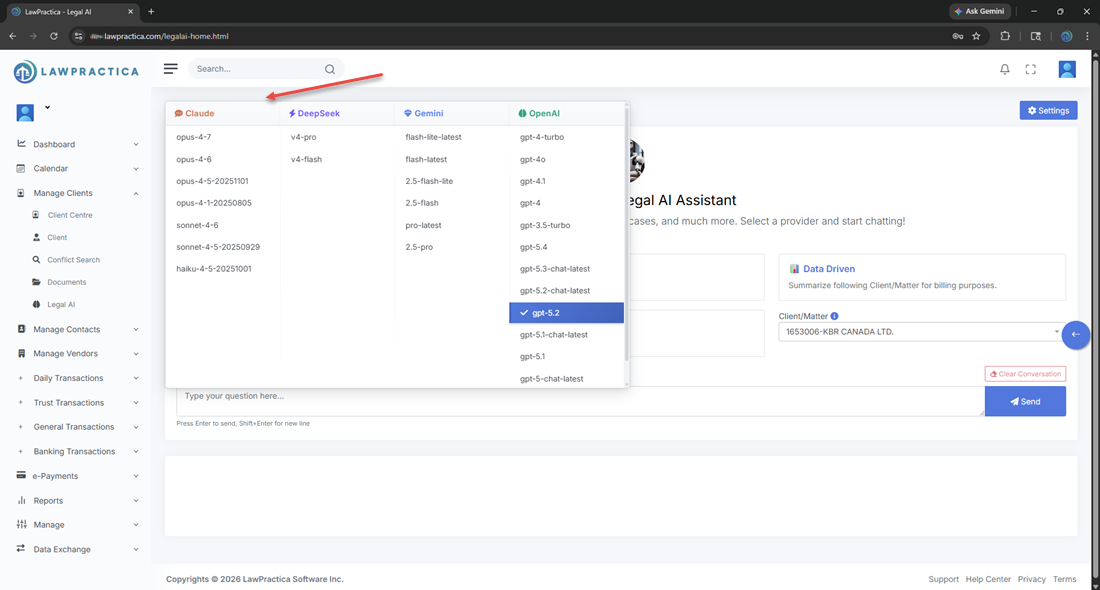
¶ Selecting AI Provider's Models
- The selected provider is displayed beside the Legal AI heading
- Click the provider badge to switch models/providers
- If no provider is selected, you will see:
- “No provider selected” indicator
- Warning banner prompting API setup
¶ Using Legal AI
¶ 1. Start with Suggestions (Optional)
You can click on built-in suggestion cards:
- 📚 Legal Research
- ⚖️ Find Precedents
- 📝 Case Preparation
- ❓ Discovery Questions
- 📊 Data Driven (Client/Matter-based)
These will auto-fill the input box.
Research based assistance:
¶ 2. Enter Your Query
- Type your question in the input box
- Press:
- Enter → Send message
- Shift + Enter → New line
Click Send to submit your request.
¶ 3. View Responses
- Responses appear in the chat panel
- A typing indicator (“Leo is processing…”) shows processing status
¶ 4. Clear Conversation
- Click Clear Conversation
- This resets the chat and returns to the welcome screen
¶ Using Client / Matter Context - Data Driven AI Integration (beyond just chat)
The Client/Matter dropdown allows AI to work with contextual data.
¶ Steps:
- Select a Client/Matter
- The system attaches relevant data only
- Use prompts like:
- “Summarize for billing”
- “Analyze this matter”
This helps generate more accurate and context-aware responses.
¶ Best Practices
- Use clear and specific prompts
- Select the correct Client/Matter when needed
- Choose the provider based on:
- Cost
- Performance
- Response quality
- Avoid entering sensitive data unless permitted by your organization’s policy
¶ Notes
- API keys are securely stored
- You can enable/disable providers at any time
- Multiple providers can be configured, but only one is active at a time
¶ Summary
The Legal AI feature introduces Leo, a powerful AI assistant designed to support legal professionals with research, drafting, analysis, and communication. With natural language capabilities, customizable prompts, and deep integration into LawPractica, Leo enhances productivity while maintaining professional standards.