¶ 1. Overview
The Manage Users module allows firm administrators and owners to control:
- Who can access the system
- What each user is allowed to do
- Which permissions they inherit from groups
- Whether Multi‑Factor Authentication (MFA) is required
- Whether a user is active or disabled
This module is essential for maintaining a secure, compliant, and well‑governed practice management environment.
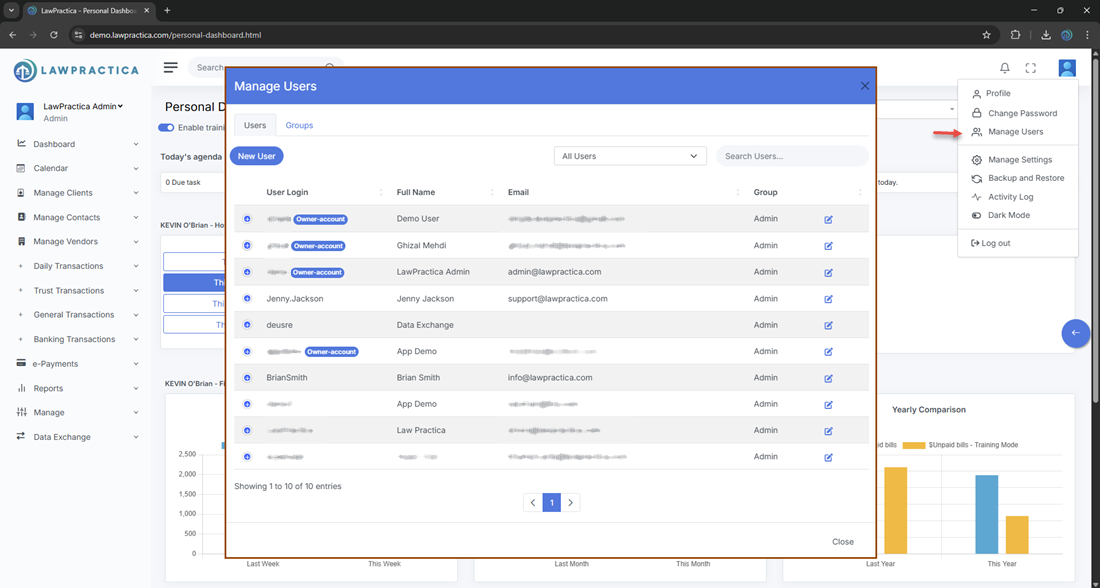
¶ 2. Features Under Manage Users
The module contains two primary tabs:
- Users
- Groups
Each tab serves a distinct purpose in managing access and permissions.
¶ 2.1 Users
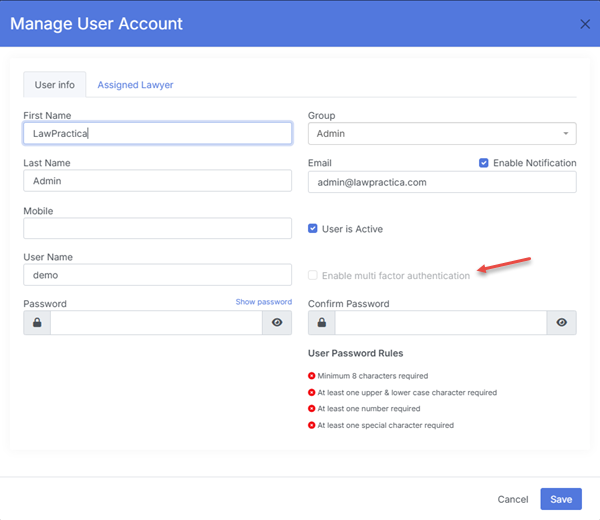
The Users tab displays all system users and allows administrators to manage individual accounts.
¶ Key capabilities
- View all active and inactive users
- Create new user accounts
- Edit user details
- Assign system roles
- Assign permission groups
- Enable or disable Multi‑Factor Authentication (MFA)
- Activate or deactivate accounts
¶ Information displayed
- User Name
- Role
- Status (Active/Inactive)
- MFA Status (Enabled/Disabled)
- Assigned Groups
- Actions (Edit, Deactivate)
¶ User Detail Modal
When editing a user, administrators can configure:
¶ 1. Personal Information
- Full name
- Email address
- Contact details (optional)
¶ 2. System Role
Roles define high‑level access, such as:
- Admin
- Owner
- Lawyer
- Paralegal
- Staff
¶ 3. Permission Groups
- Users can be assigned to one or multiple groups to inherit permissions.
¶ 4. Multi‑Factor Authentication (MFA)
- Administrators can enable or disable MFA for any user.
¶ MFA Enabled
- User must authenticate using a second factor (e.g., email code, authenticator app)
- Provides enhanced security for sensitive data
¶ MFA Disabled
- User logs in with password only
- Recommended only for low‑risk accounts or internal testing
- Admins can toggle MFA at any time.
¶ 5. Status
- Active — user can log in and perform actions
- Inactive — user is disabled but retained for historical reporting
¶ 2.2 Groups
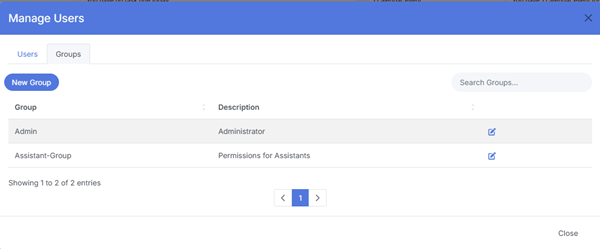
- The Groups tab allows administrators to create and manage permission groups. Groups define what users can see and do across the system.
¶ Purpose of Groups
- Standardize permissions across similar roles
- Reduce manual permission assignment
- Improve security and compliance
- Ensure consistent access control
¶ Key capabilities
- Create new permission groups
- Edit group names and descriptions
- Assign or remove permissions
- Add or remove users from groups
- Activate/deactivate groups
¶ Group Detail
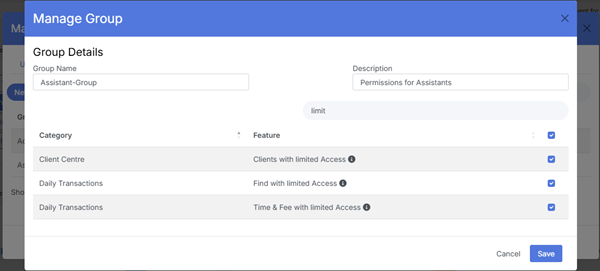
Each group includes:
¶ 1. Group Name & Description
- Clear identification of the group’s purpose (e.g., “Billing Team”, “Trust Accounting”, “Lawyers”).
¶ 2. Permissions Matrix
A structured list of permissions that can be toggled on/off, such as:
- Access to billing modules
- Ability to post time or expenses
- Access to trust accounting
- Ability to generate invoices
- Access to financial reports
- Ability to manage templates
- Admin‑level configuration access
¶ 3. Assigned Users
List of users who inherit permissions from this group.
¶ 3. How Permissions Work
LawPractica uses a role + group permission model:
¶ Role
- Defines the user’s general position (Admin, Lawyer, Staff).
¶ Group
- Defines the specific permissions the user has.
¶ Effective Permissions
A user’s final access level is determined by:
Role permissions
- All permissions from assigned groups
This allows flexible, scalable, and secure access control.
¶ 4. Multi‑Factor Authentication (MFA)
- MFA adds an additional layer of security to user accounts.
¶ What MFA Does
- Requires users to verify identity using a second factor
- Protects against unauthorized access
- Helps meet compliance and security standards
¶ Admin Controls
Admins can:
- Enable MFA for any user
- Disable MFA for any user
- Require MFA for specific roles (if firm policy demands)
¶ Recommended Best Practices
- Enable MFA for all Admin and Owner accounts
- Enable MFA for anyone with access to trust accounting
- Use MFA firm‑wide for maximum security
¶ 5. Best Practices
To maintain a secure and well‑structured user environment:
- Use groups instead of assigning permissions individually
- Enable MFA for all high‑risk roles
- Deactivate users instead of deleting them
- Review permissions quarterly
- Assign minimal permissions needed for each role
- Document internal permission policies
¶ 6. Summary
The Manage Users module provides a centralized, admin‑only system for managing user accounts, roles, permissions, and MFA security. With tools for user creation, group‑based permissions, and multi‑factor authentication, it ensures the firm operates securely, efficiently, and in compliance with internal policies.
This module is essential for maintaining a controlled, audit‑ready, and well‑governed practice management environment.