¶ 1. Overview
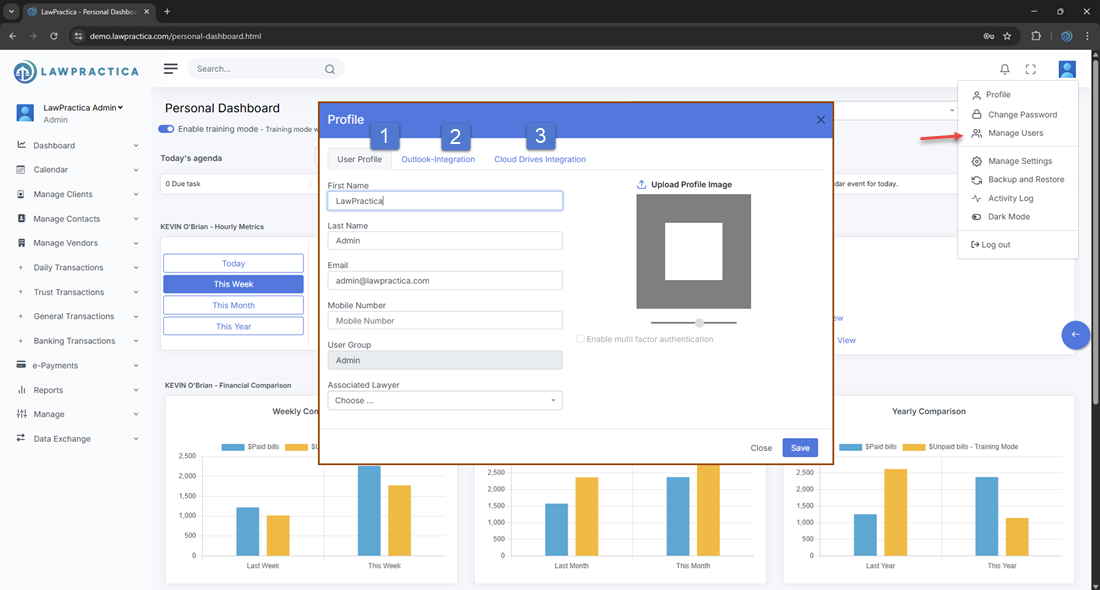
The User Profile modal allows each user to manage their personal information and connect external integrations that enhance daily workflows. This includes:
- Updating profile details
- Connecting Outlook for email sending
- Connecting OneDrive for cloud document storage
These settings personalize the user experience and enable smooth integration with Microsoft services.
¶ 2. Inside User Profile
The User Profile modal includes the following tabs:
- Profile
- Outlook Integration
- Cloud Drives Integration (OneDrive)
Each tab is described below.
¶ 2.1 Profile
The Profile tab contains the user’s basic personal and account information.
¶ Key capabilities
- View and update personal details
- Update contact information
- Upload or change profile photo (if supported)
¶ Information displayed
- Full Name
- Email Address
- Phone Number (optional)
- Role (read‑only)
- Profile Image (optional)
This tab ensures your personal information is accurate and up to date.
¶ 2.2 Outlook Integration
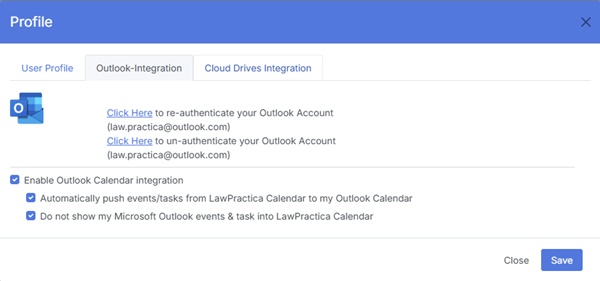
The Outlook Integration tab allows users to connect their Microsoft Outlook account to LawPractica.
¶ Purpose
- Enables seamless email functionality, including:
- Sending emails directly from LawPractica
- Syncing sent items to Outlook
- Using Outlook as the default email delivery channel
- Supporting workflows such as invoice emails and reminders
¶ Key capabilities
- Connect Outlook account
- Disconnect Outlook account
- View connection status
- Refresh authentication
¶ Connection Flow
- Click Connect Outlook
- Redirects to Microsoft login/consent screen
- User grants permission
- System confirms successful connection
¶ When Outlook is connected
- Emails sent from LawPractica appear in Outlook’s Sent folder
- Email templates can use Outlook as the delivery method
- Improves reliability and deliverability
¶ 2.3 Cloud Drives Integration (OneDrive)
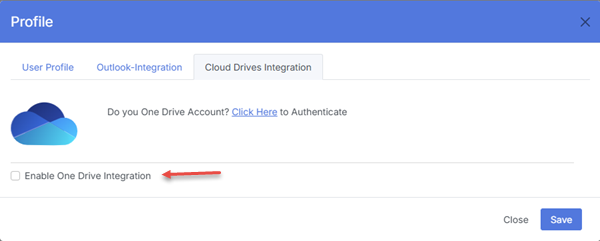
- The Cloud Drives Integration tab allows users to connect their OneDrive account.
¶ Purpose
- Enables cloud‑based document storage and access, including:
- Uploading documents directly to OneDrive
- Accessing OneDrive files from LawPractica
- Linking documents to matters, clients, or tasks
- Ensuring secure, centralized document management
¶ Key capabilities
- Connect OneDrive account
- Disconnect OneDrive account
- View connection status
- Refresh authentication
¶ Connection Flow
- Click Connect OneDrive
- Redirects to Microsoft login/consent screen
- User grants permission
- System confirms successful connection
¶ When OneDrive is connected
- Documents uploaded in LawPractica can be stored in OneDrive
- Users can browse OneDrive folders from within the system
- Supports firm‑wide cloud document workflows
¶ 3. Best Practices
- To maintain a smooth and secure user experience:
- Keep profile information up to date
- Connect Outlook for reliable email delivery
- Connect OneDrive for centralized document storage
- Refresh integrations periodically to maintain authentication
¶ 4. Summary
The User Profile modal provides a centralized location for managing personal details and connecting external services. With support for Outlook and OneDrive, users can streamline communication and document workflows while maintaining a personalized experience across LawPractica.