¶ 1. Overview
The Manage Invoice Templates feature allows firms to create, customize, and maintain the invoice formats used throughout LawPractica. This includes:
- Firm branding (logo, header, footer)
- Layout and formatting
- Display rules for time entries and expenses
- Tax and summary sections
- e‑Signature placement
- Multiple template variations for different practice areas or clients
Invoice templates ensure that all invoices generated by the firm are consistent, professional, and aligned with branding and billing requirements.
¶ 2. Features Under Manage Invoice Templates
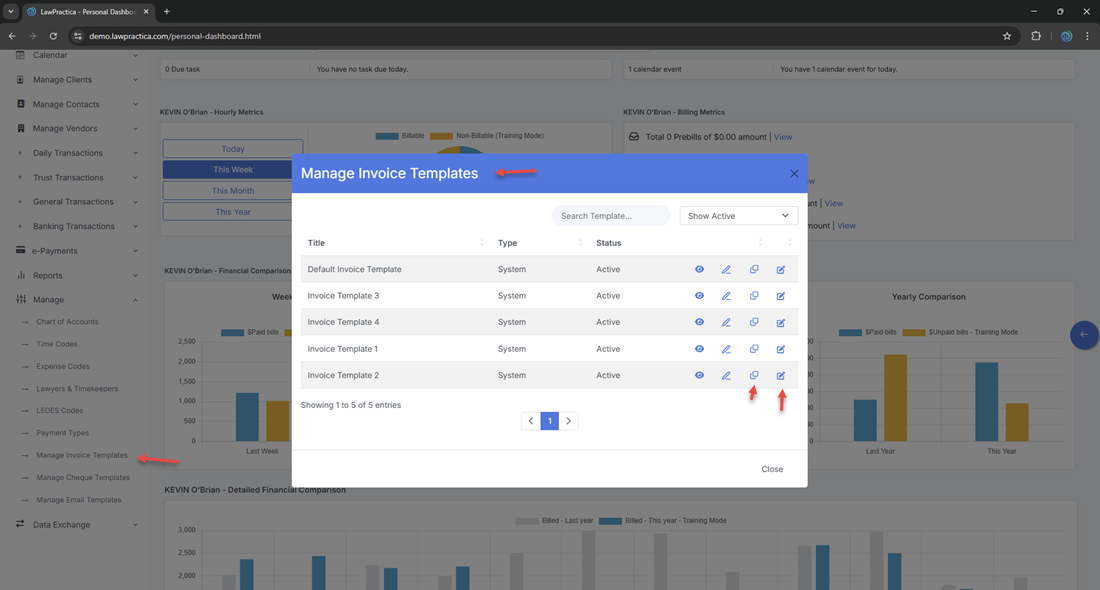
¶ 2.1 Invoice Templates (List View)
- Displays all invoice templates available in the system.
¶ Key capabilities
- View all templates
- Create new templates
- Edit existing templates
- Duplicate templates
- Activate or deactivate templates
- Assign templates to clients or matters
¶ 2.2 Invoice Template Detail (Template Editor)
- A detailed editor for customizing the structure, layout, and branding of an invoice template.
¶ Key capabilities
- Edit template name
- Upload or update firm logo
- Configure header and footer
- Customize layout sections
- Control visibility of time entries, expenses, taxes, and summaries
- Set e‑Signature placement
- Save and preview template
¶ 3. Invoice Templates (List View)
The list view provides a complete overview of all invoice templates.
¶ Information Displayed
- Template Name
- Status (Active/Inactive)
- Assigned Clients (if applicable)
- Actions (Edit, Duplicate, Deactivate)
¶ Key Capabilities
- Search templates by name
- Create new templates
- Edit or duplicate existing templates
- Deactivate templates no longer in use
- Assign templates to specific clients or matters
- This view is the central management screen for all invoice formats.
¶ 4. Invoice Template Detail (Template Editor)
- The detail modal provides full customization options for a single invoice template.
¶ 4.1 Template Information
- Template Name
- Status (Active/Inactive)
- Description (optional)
¶ 4.2 Branding Settings
¶ Logo
- Adjust size and alignment
¶ Header
- Firm name
- Address
- Contact information
- Optional custom text
¶ Footer
- Payment instructions
- Terms and conditions
- Additional notes
¶ 4.3 Layout & Display Settings
¶ Time Entries
Control how time entries appear on invoices:
- Show/hide time entry descriptions
- Show/hide lawyer initials
- Show/hide hours and rates
- Group by lawyer, date, or activity
- Summarize or itemize entries
¶ Expenses
Configure expense display:
- Show/hide expense descriptions
- Show/hide quantities and rates
- Group or itemize expenses
¶ Taxes
- Enable/disable tax display
- Show tax breakdown (GST/PST/HST)
- Show tax summary
¶ Totals & Summary
- Show subtotal
- Show discounts
- Show trust applied
- Show outstanding balance
¶ 4.4 e‑Signature Placement
- If the lawyer has an uploaded e‑Signature, the template can include:
- Signature block
- Lawyer name and title
- Placement options (bottom left, bottom right, centered)
- This ensures invoices appear professional and authenticated.
¶ 4.5 Client‑Specific Template Assignment
Templates can be assigned to:
- Specific clients
- Specific matters
- Practice groups (optional)
When assigned, the template automatically applies during invoice generation.
¶ 5. Integration with Other Features
Invoice Templates integrate with:
¶ Invoices & Payments
- Templates define the layout of generated invoices
- e‑Signatures appear automatically if enabled
¶ Client Settings
- Assign custom templates per client
¶ Matter Settings
- Override client template with matter‑specific template
¶ 6. Best Practices
To maintain a clean and effective invoice template library:
- Use clear template names (e.g., “Standard Invoice”, “Corporate Client Template”)
- Keep branding consistent across all templates
- Avoid unnecessary templates
- Use duplication when creating variations
- Review templates annually for branding or compliance updates
- Ensure e‑Signature quality for professional presentation
¶ 7. Summary
The Manage Invoice Templates feature provides a centralized, flexible system for creating and maintaining professional invoice formats across the firm. With tools for branding, layout customization, e‑Signature placement, and client‑specific assignment, it ensures consistent, accurate, and polished billing output.
This module is essential for firms that want to maintain professional billing standards and streamline invoice generation.