¶ 1. Overview
The e‑POS feature allows firms to process in‑person electronic payments using a LawPay POS terminal. This includes:
- Tap, chip, or swipe card payments
- In‑office credit card payments
- Trust‑compliant deposits
- Invoice payments
- General payments
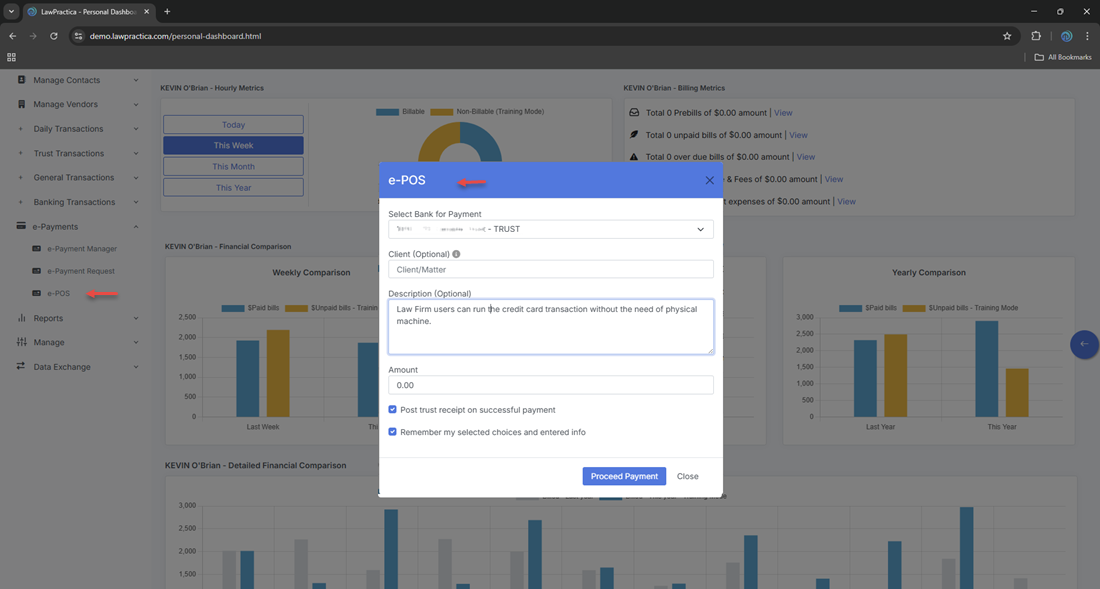
The e‑POS feature is fully integrated with LawPay, and is only available when LawPay is enabled under:
Manage Settings → e‑Payments → LawPay Integration
Once enabled, e‑POS becomes the firm’s digital equivalent of a physical payment terminal — but fully synchronized with LawPractica’s billing, trust, and general accounting workflows.

¶ 2. When to Use e‑POS
Use this feature when:
- A client pays in person at the office
- You need to process a credit card or debit card payment
- A client wants to pay an invoice on the spot
- A trust retainer is being deposited in person
- You want to avoid manual entry of card details
- You want instant posting of payments into LawPractica
e‑POS is ideal for front‑desk staff, billing teams, and firms that accept walk‑in or same‑day payments.
¶ 3. LawPay Integration Requirement
The e‑POS feature is only available when:
- LawPay is enabled
- A LawPay POS terminal is connected to the firm’s LawPay account
- Trust and general accounts are mapped correctly
- Once connected, the POS terminal communicates directly with LawPractica.
¶ 4. Types of Payments Supported
The e‑POS feature supports three payment categories:
¶ 4.1 Invoice Payments
Process in‑person payments for:
- Single invoices
- Multiple invoices
- Partial invoice payments
The system automatically applies the payment to the selected invoice(s).
¶ 4.2 Trust Deposits
Accept trust‑compliant payments for:
- Retainers
- Settlement funds
- Court‑ordered deposits
Funds are routed directly into the trust account, ensuring compliance.
¶ 4.3 General Payments
Used for:
- General retainers (if allowed)
- Miscellaneous payments
- Non‑invoice payments
Funds are routed into the general operating account.
¶ 5. How e‑POS Works
¶ Step 1 — Open e‑POS
- Located under Left Navigation → e‑POS.
¶ Step 2 — Select Payment Type
Choose:
- Invoice Payment
- Trust Deposit
- General Payment
¶ Step 3 — Enter Payment Details
Depending on the type, enter:
- Client
- Matter
- Invoice
- Amount
- Description
¶ Step 4 — Initiate Terminal Payment
The POS terminal prompts the client to:
- Enter credit card payment.
¶ Step 5 — Payment Syncs Automatically
Once approved:
- Payment appears instantly in LawPractica
- Invoice balances update
- Trust or general receipts are created
- e‑Payment Manager logs the transaction
- No manual entry required.
¶ 6. What Happens After Payment
Once the POS transaction is completed:
¶ 1. Payment is recorded in LawPractica
As a:
- Trust Receipt (for trust deposits)
- General Receipt (for general payments)
- Invoice Payment (for invoice‑linked payments)
¶ 2. Payment appears in e‑Payment Manager
With status:
- Completed
- Failed
- Refunded (if processed later)
¶ 3. Bank reconciliation is supported
- LawPay deposits and fees appear in reconciliation workflows.
¶ 7. Compliance Notes
e‑POS inherits all LawPay compliance protections:
¶ 1. Trust Accounting Compliance
- Trust payments go directly into the trust account
- No commingling of funds
- Full audit trail of trust deposits
¶ 2. PCI Compliance
- Card data is handled by LawPay’s secure terminal
- LawPractica never stores card numbers
¶ 3. Audit Trail
Every POS payment logs:
- Client
- Amount
- Payment type
- Terminal ID
- Timestamp
- User who processed the payment
¶ 4. Reconciliation
POS payments must be matched to:
- LawPay deposits
- LawPay fees
- Bank statements
¶ 8. Integration with Other Features
e‑POS integrates with:
- e‑Payment Manager – Tracks POS payments
- Invoices & Payments – Applies invoice payments
- Trust Receipt – Records trust deposits
- General Receipt – Records general payments
- Client Detail – Shows payment history
- Reports – Payment summaries, trust audit logs
- Bank Reconciliation – Matches LawPay deposits
This creates a seamless in‑person payment ecosystem.
¶ 9. Summary
The e‑POS feature provides a fast, secure, and compliant way to process in‑person electronic payments through LawPay. With support for invoice payments, trust deposits, and general payments — all synced instantly into LawPractica — it modernizes front‑desk operations and ensures trust‑accounting compliance.